
Never press Enter again – Claude Code with a Stream Deck Mini
Never press Enter again – Claude Code with a Stream Deck Mini
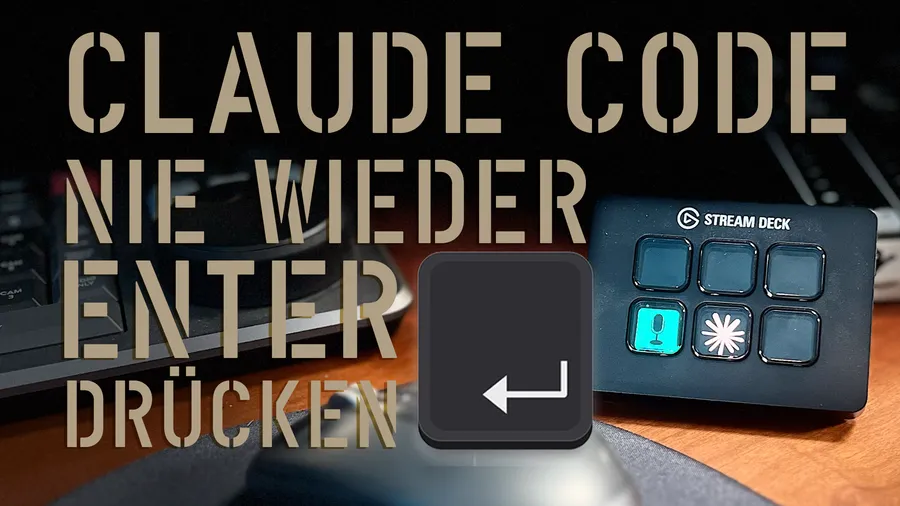
One of the most annoying things about working with Claude Code, for me, is constantly confirming with the Enter key. That’s why I built two buttons on the Stream Deck.
I even got a Stream Deck Mini just for these two keys. It sits right next to my mouse, I only have to slide over and press.
Watch the video right here:
Button 1: Dictation with a built-in Enter
When I press the microphone button, dictation starts and I can speak straight into my Claude Code app. The icon turns red so I can see that recording or transcription is running.
When I press it again, dictation isn’t just stopped – the button also presses Enter right away. What I dictated goes straight into the chat. I could also start and stop dictation with a shortcut, but then I’d have to press Enter separately. The button does that for me.
Important: This is the explanation for the Mac. There you start dictation by default by pressing the Control key twice. But you can also assign this key freely. On my setup it is on F12, and exactly this key is stored in the Stream Deck. The buttons are built there as multi-actions: the microphone button alternates between “F12” (start dictation) and “F12 plus Enter” (end dictation and send), and the second button presses Tab and Enter.
Button 2: Tab and Enter in one go
The second button is also for Claude Code and does Tab and Enter at the same time. When Claude has finished something for me, it often makes a suggestion for the next step – for example “Replace image”, which is already in the input field. You activate it with Tab and send it with Enter. I save myself both: one button, done.
Small thing, big effect
If you work with Claude Code all day, you quickly notice how often you press Enter. Two buttons, and the workflow keeps flowing. Do you have mini-automations like this on your Stream Deck too? Tell me in the comments.